Analytics
Google Tag Manager: test a container before publishing
Check a Google Tag Manager workspace with positive and negative tests, record the known good version and verify the live change after publication.
Vladlens Kecko · · 5 min read
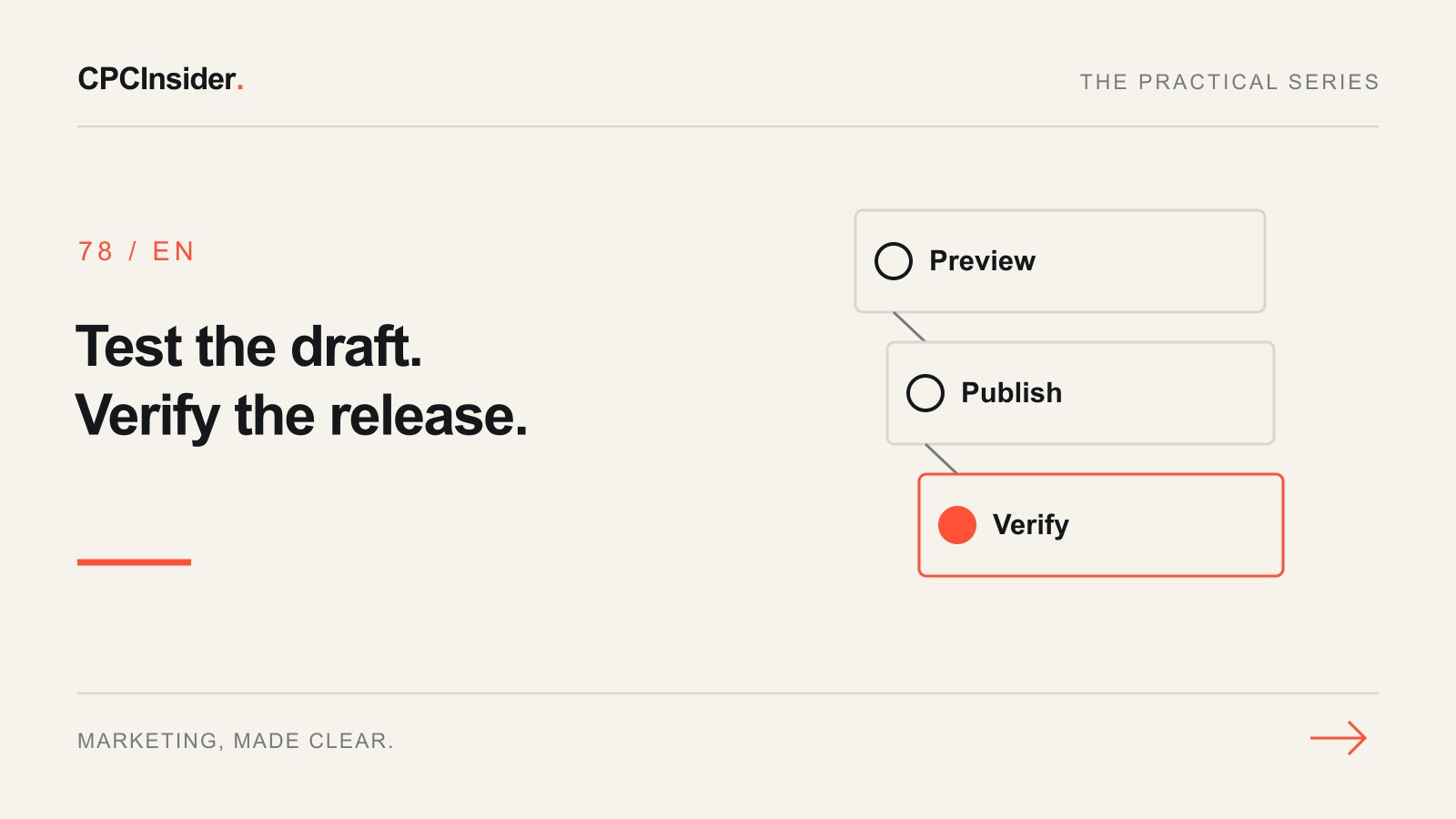
Google Tag Manager makes it possible to update tag rules without changing every page template. A firing tag is only one part of a safe release: confirm the trigger, payload, consent behaviour and what must remain unchanged.
1. Describe the change before opening Preview
Write the container ID, environment, target event and destination. Record the current live version and the owner who can restore it. Review workspace changes against the expected scope, including unrelated edits or dependencies. If the workspace contains changes you cannot explain, stop and resolve ownership before publishing.
2. Test success and non-success
Google's Preview mode connects the draft to Tag Assistant. Test on the real journey with safe data. For a lead form, require evidence of a successful submission rather than a button click. Inspect the event, firing trigger and destination. Check that no personal contact information is sent in the URL or event parameters.
3. Keep a small release matrix
This example is hypothetical. Replace the form name and expected behaviour with your own measurement contract.
| Scenario | Expected result | Evidence |
|---|---|---|
| Validation error | No lead success event | Form error and Tag Assistant event list |
| Successful test submission | One lead success event | Event name, tag and correct destination |
| Refresh confirmation | No additional lead success event | Repeat navigation and event count |
| Advertising consent declined | Configured denied-consent behaviour | Consent state and tag behaviour against approved setup |
| Unrelated page | Existing tags still behave as before | Compare with known good version |
If GA4 does not show the event, use the DebugView troubleshooting guide to separate the draft firing check from collection and observation. Preview can send real requests; use an approved test destination or a clearly flagged test process. A successful Preview does not prove your production version is already live.
4. Publish a named version and test again
Follow Google's publishing and versions guide. Use a name that identifies the purpose and add a short description with changed tags, checks and rollback version. After approval and publication, confirm the live version and repeat a limited clean-session test without Preview. Check that existing critical events still work.
5. Restore deliberately if a critical check fails
If a release sends duplicate or prohibited data or stops a required event, stop the rollout and notify the owner. Compare versions and confirm the known good version will not discard unrelated approved changes. Restore it through the authorized process where appropriate and repeat critical checks. Restoring a tag configuration does not remove data already collected.
Our tracking, attribution and CRM service helps turn events into a measurement plan your team can maintain. Book a free 30-minute founder-led growth review for a short written plan with three priorities and no obligation to implement it with us.
About the author
Free founder-led growth review
Know where to focus your next marketing investment.
In a focused 30-minute conversation, we review your advertising, website and sales follow-up together. Afterwards, you receive a short written action plan you can use with your own team or with ours.
Your biggest growth gaps
See where your ads, website or follow-up may be losing potential customers.
Your next 3 priorities
Get a ranked action list with the reason for each recommendation and what to check next.
A practical starting plan
Leave with clear next steps for your team, plus our recommendation if you want help implementing them.
Continue reading
GA4 DebugView not showing events? A practical troubleshooting checklist
GA4 DebugView empty? Check the property, test device, debug signal and consent. Use a diagnostic log to separate collection problems from reporting.
GA4 duplicate purchases: find the sender and fix order IDs
GA4 showing too many purchases? Trace duplicate senders, check transaction IDs and test refreshes, retries and second orders with this practical checklist.
Advertising measurement: build a GA4 and CRM measurement plan
Build a GA4 measurement plan with event definitions, Google Ads goals and CRM outcomes. Use a practical worksheet and pre-launch checks.